Migrating an ISMS from SharePoint: documents and permissions
Which version is approved, who may see it and which measure does it support? Prepare your SharePoint ISMS migration with these checks.

Migrating a SharePoint ISMS means more than downloading documents and uploading them to a new system. You need the right approved version, its business context and tested access. Decide for each relevant document what will transfer and which information will remain traceable in the legacy collection.
The difficult part often appears only in use: the policy opens, but its approval state is unclear. Or the evidence exists, but the responsible team can no longer access it. Both can happen despite a technically successful file transfer.
This guide is for ISMS owners moving existing SharePoint data into another working environment. Part 1: From Excel to an ISMS covers the overall process, field mapping and business acceptance. Here, the focus is document libraries, versions, approvals and permissions.
Key takeaways
- Inventory the data actually used: the library, document owner and approved version belong together.
- Distinguish file and context: a downloaded file alone demonstrates neither approval nor version history.
- Test access separately: use intended roles to test both allowed and prohibited access.
- Define one authoritative location: a deliberately linked SharePoint collection can make sense. Uncontrolled parallel maintenance creates new contradictions.
1. Which SharePoint libraries actually belong to the ISMS?
Start with repositories people actually use. Alongside a central ISMS site, departments may maintain their own libraries for test records, contracts or policies. Ask about workflows: where is something created, where is it approved, and where does the team find the valid version?
Depending on configuration, SharePoint can provide versioning, metadata and approval processes. Your actual setup is therefore the starting point. A well-maintained document management system should retain its meaning during migration.
Create an inventory at library and document level. The following working aid is a planning model, not an export description for a particular tool:
| Inventory field | What to record | Why it is needed |
|---|---|---|
| Site and library | Unique source address and responsible department | Find the correct dataset again |
| Document and owner | Title, stable source reference and responsible role | Assign substantive decisions |
| Valid version | Confirmed approved version and its scope | Distinguish draft from authoritative content |
| Metadata | Such as document type, location and review date | Represent information deliberately in the target |
| Access | Relevant groups, exceptions and external sharing | Define the target permission model |
| Treatment | Transfer, continue through a link or retain as reference | Make a reasoned migration decision |
A document can be relevant in several contexts without being copied several times. Record these relationships explicitly. Conversely, two files with the same title are not automatically duplicates: check version, scope and content before excluding one.
2. Distinguish the approved version from history
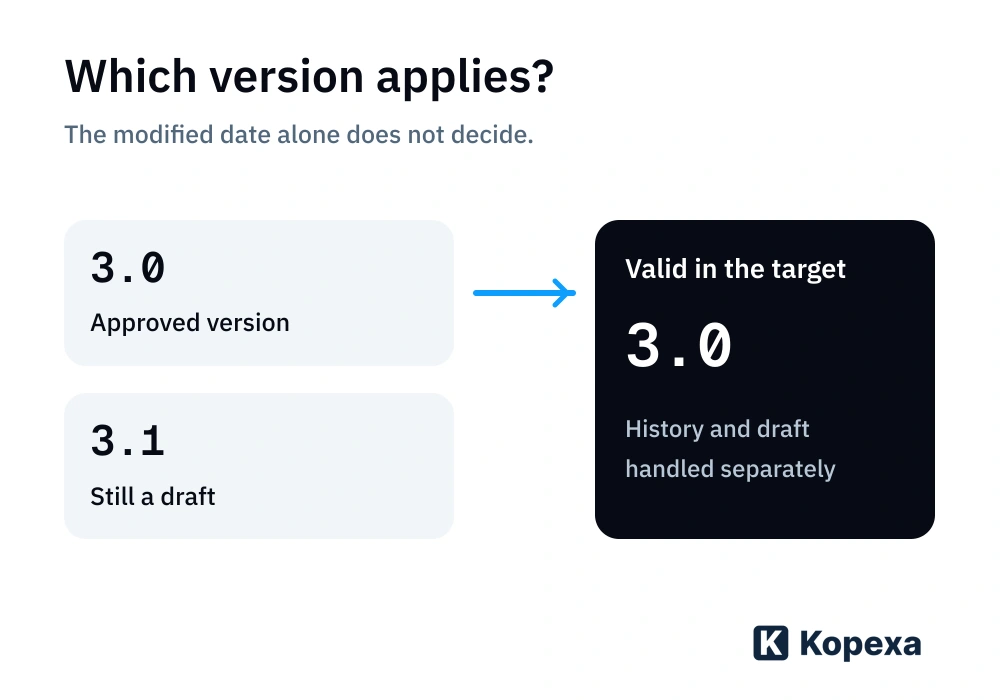
Imagine a policy with valid version 3.0 and an unapproved draft 3.1. Migrating only the latest file could make the draft appear authoritative. Before exporting, establish which version will govern daily work in the target and how earlier decisions will remain findable.
Transfer paths differ even within SharePoint. Microsoft describes “Copy to” as transferring the latest version, while “Move to” transfers document history. This describes those SharePoint functions, not a promise about export into another application. See Microsoft’s documentation on moving and copying.
Answer three questions for your migration:
- Which version does the team need as its current working basis?
- Which earlier versions and approval information must remain traceable later?
- Can the agreed transfer path preserve that information, or is a separate reference collection needed?
If the target cannot represent history equivalently, document the limitation. Preserve the connection between the transferred version and the original collection. A new upload date replaces neither the original approval date nor the identity of the approver.
3. Map metadata and relationships by meaning
Not every SharePoint column must reappear identically. Its information must survive wherever the team needs its meaning. Assign each relevant source field to a target field or another traceable treatment.
For example, a “Location” column limits a test record to plant A. If it is lost during export, the evidence may appear universally applicable. A “Document type” field may also determine whether something is used as a policy or evidence. The filename alone does not reliably carry that information.
Check links in documents and lists too. A reference to an old library path may continue working while the source remains accessible. Change permissions or remove repositories, and the same reference can break. Inventory important references and test them through the intended workflow.
Deliberately choose where files will live. If documents stay in SharePoint, the target must reference the correct version and an authorised person must be able to open it. A link does not replace an access test. If files transfer, source reference and required context belong in acceptance testing.
4. Permissions need their own review
A successful transfer using an administrator account does not answer what others may later see or edit. Translate required access into the target’s role model. Include individual exceptions and external people where relevant.
Microsoft documents that identity mapping and target permissions affect the resulting access in its SharePoint Migration Tool. These conditions apply to that Microsoft tool and its supported paths. They do not mean Kopexa automatically transfers permissions. See the SPMT file and folder permissions documentation.
A small access matrix helps with business acceptance. These roles are examples, not requirements for your organisation:
| Test role | Should be possible | Should be prevented |
|---|---|---|
| Employee | Read the valid published policy | Open confidential drafts or unrelated audit records |
| Document owner | Edit assigned content | Acquire responsibility for other areas without review |
| Auditor | View agreed evidence | Modify content without the corresponding permission |
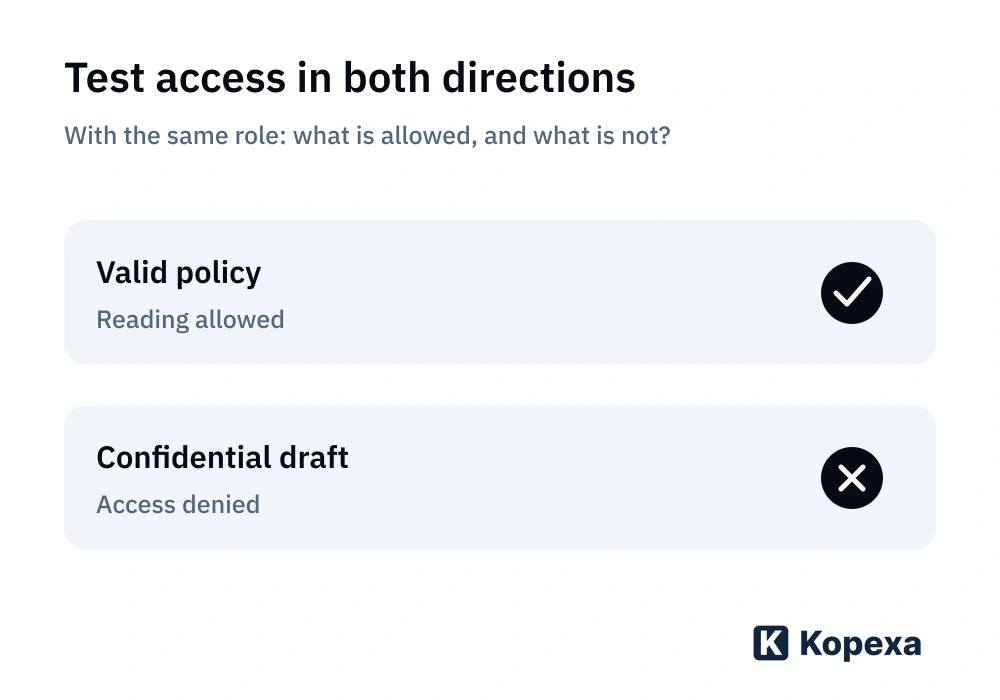
Test with designated accounts and agreed permissions. A positive test alone is insufficient: if someone may read a policy, also check whether the same account can improperly access confidential records. Document expected and actual results.
An old permission need not survive unchanged. If no longer appropriate, migration can provide an opportunity for an agreed correction. Record that as a separate decision; it must not happen unnoticed as a transfer side effect.
5. Walk through an entire test library
Do not select only straightforward PDF files. Choose a manageable sample containing your difficult cases: an approved version alongside a draft, important metadata, individual permissions and a reference to related evidence.
Have document owners perform real tasks afterwards:
- Find the currently valid policy and identify its scope.
- Open the related evidence through the intended relationship.
- Trace the required older version or its reference.
- Read or edit with an authorised role.
- Test prohibited access with an unauthorised role.
Record deviations with their impact, owner and decision. A missing central approved version or overly broad access to confidential content is more than a display defect. Resolve these issues before approving the affected data.
6. Cut over without maintaining documents twice
After testing, a clear handover is needed: which location is authoritative for which data? Who includes changes since the test export? Who tells participants about new workflows?
A deliberate split can work. Documents might remain in a controlled SharePoint library while tasks and mappings are managed elsewhere. What matters is clear ownership, version reference and access. Ongoing synchronisation or a particular connector must not be silently assumed.
Preserve the required source state and prevent unintended parallel maintenance. Decide how long references are needed and who may access them based on your business, contractual and other applicable requirements. Migration is not a blanket reason to delete originals immediately.
What to prepare for moving to Kopexa
Bring an anonymised overview of libraries, data types and intended relationships. Show which content should become requirements, measures or evidence, and which roles use it. This establishes the required migration path against your existing records.
Kopexa supports migration. CSV import paths and a GraphQL API are available for data transfer. Clarify in advance which paths suit your data and how target permissions will be configured. Examine the treatment of files, metadata, approvals and required history. The CSN Solutions case study shows what connected ISMS work can look like in Kopexa.
Your next step
Choose one relevant library. Inventory the owners, approved versions, metadata and required access for a small selection of documents. That turns “we need to move our files” into an assignment you can verify.
Quick answers
Frequently Asked Questions
Still have a question? Find the answers here.
Is downloading and reuploading SharePoint documents enough?
Downloading and uploading can transfer file contents. Kopexa provides CSV import paths and a GraphQL API for structured data, and supports migration. Also define the treatment of approval state, metadata, version history and permissions, and test the result with a sample.
Must all documents leave SharePoint?
No. A controlled repository can continue if the path to the correct version, responsibilities and access are clear. Check how target references are maintained and what happens when paths or permissions change.
Which policy version should I migrate?
The substantively confirmed valid version governs authoritative use. A newer draft must not replace it solely because of its modification date. Also document which earlier versions or approval information must remain traceable.
Are SharePoint permissions automatically transferred to Kopexa?
Required permissions are clarified and configured for the target role model. Describe relevant SharePoint groups, roles and exceptions. Before approval, test both allowed and prohibited access; a transferred file alone does not prove appropriate permissions.
What should I do with version histories that cannot transfer?
Document the limitation and preserve required originals with a clear reference to the migrated document. Check who can access those references later. A timestamp in the new system does not replace traceable history.
Who must accept the document migration?
Responsible document owners confirm version, meaning and scope. Intended roles test actual access. Technical staff provide transmission and error logs; overall approval needs an explicitly named owner.
Sources
- Microsoft Support: Move or copy files in SharePoint — Microsoft [Accessed ]
- Microsoft Learn: File and folder permissions when using the SharePoint Migration Tool — Microsoft () [Accessed ]